
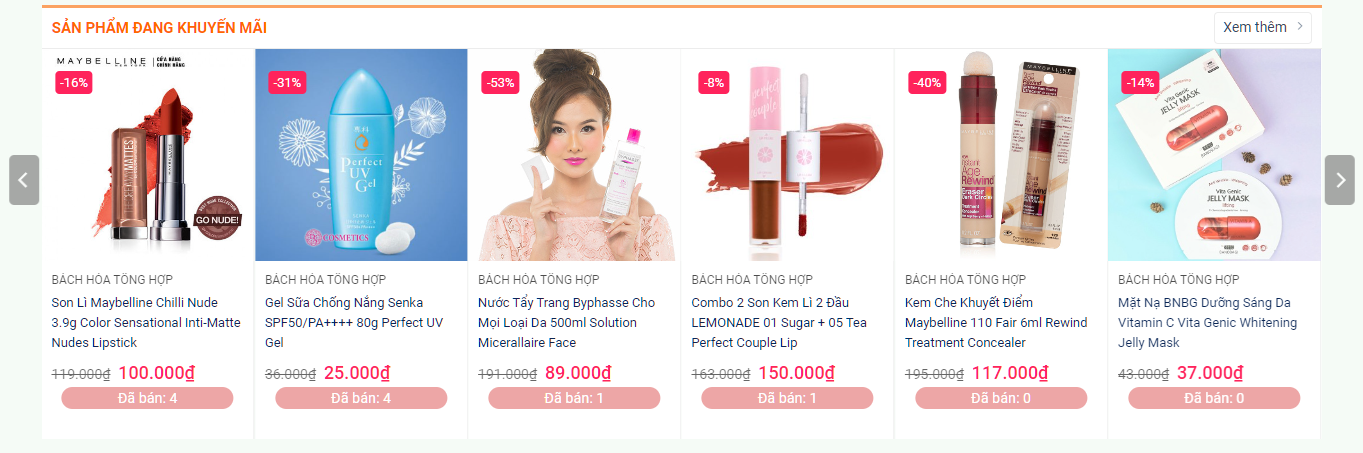
Hướng dẫn hiển thị số lượng sản phẩm đã bán trên wordpress sử dụng Woocommerce có thể hiển thị số lượng bán trong trang chi tiết sản phẩm và ngoài trang chủ, trang danh mục sản phẩm.
Bước 1: Đăng nhập từ admin hoặc từ ftp hosting yêu cầu có quyền edit file trong themes
Bước 2: Vào mục Giao diện -> Sửa giao diện -> function.php
Bước 3: Các bạn thêm đoạn code bên dưới vào function.php
Để hiển thị trong trang chi tiết sản phẩm thì dùng code sau
add_action( 'woocommerce_single_product_summary', 'wc_product_sold_count', 11 );
function wc_product_sold_count() {
global $product;
$units_sold = get_post_meta( $product->get_id(), 'total_sales', true );
echo '

' . sprintf( __( 'Đã bán: %s', 'woocommerce' ), $units_sold ) . '

';
}
Để hiển thị trong trang chủ thì dùng code sau
add_action( 'woocommerce_after_shop_loop_item_title', 'wc_product_sold_count' );
function wc_product_sold_count() {
global $product;
$units_sold = get_post_meta( $product->get_id(), 'total_sales', true );
echo '

' . sprintf( __( 'Đã bán: %s', 'woocommerce' ), $units_sold ) . '

';
}
Hiện thị cùng lúc 2 vị trí trên
dd_action( 'woocommerce_after_shop_loop_item_title', 'wc_product_sold_count' );
add_action( 'woocommerce_single_product_summary', 'wc_product_sold_count', 11 );
function wc_product_sold_count() {
global $product;
$units_sold = get_post_meta( $product->get_id(), 'total_sales', true );
echo '

' . sprintf( __( 'Đã bán: %s', 'woocommerce' ), $units_sold ) . '

';
}
Bổ sung mã css vào trang
p.da-ban {
border-radius: 20px;
margin-bottom: 0;
text-align: center;
margin-top: 5px;
background-color: rgba(210,33,33,.4);
background-image: none;
margin-left: 10px;
margin-right: 10px;
position: relative;
height: 25px;
margin-bottom: 10px;
color: #fff;
-webkit-box-shadow: none;
box-shadow: none;
}
Làm theo các bước hướng dẫn như trên bạn đã có được 1 trang show thông tin số lượng bán chuẩn.
Chúc các bạn thành công!